Mobile App Volume Controller AdMob FB Ads AndroidMobile App Volume Controller AdMob FB Ads Android
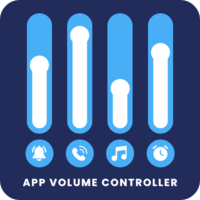
Mobile and App Volume Controller is an amazing app that helps you to control your apps volume while launched and close the app.
Mobile App Volume Controller AdMob FB Ads Android
Mobile and App Volume Controller is an amazing app that helps you to control your apps volume whi...
Screenshots


Overview
Mobile and App Volume Controller is an amazing app that helps you to control your apps volume while launched and close the app.
Adjust and save app all volume setting for (Media, Ring, Alarm, Notification, System) and full settings will be set while app is launched.
Also app have an another feature of keep your Phone ring always high so you will never missed any important calls.
Features

Key Features of Mobile App Volume Controller:
* Adjust and save App Volume for Media, Ring, Alarm, Notification, System
* Auto set All Settings while Launched the app
* Auto Reset All previous Setting While close the app
* Also Give Message while set and reset Volume Settings
* Set Incoming call volume base on Sunrise & Sunset time
* Adjust Volume Settings while Switch on Mobile Screen
* Reset or adjust volume Settings while close the Mobile Screen
* User-Friendly Interface
* AdMob & Facebook ads Integrated
* Android 16 support with SDK 36
So The app can control the full phone and Apps volume on single settings.
Use Accessibility Service Permission :
Main function of 'Mobile App Volume Controller' app is to control volume while lunch or close the particular app. without main function app will not work.
This are the main features:
* Getting access to control volume of any phone and handling all actions regarding it.
* To set custom volume settings of Media, Ringtone, Alarm & Notification while Open the app.
* And also Reset the Default volume settings of Media, Ringtone, Alarm & Notification while close the app.
So the app use BIND_ACCESSIBILITY_SERVICE permission.
IF THE APP IS NOT INSTALLED ON YOUR DEVICE, YOU CAN INSTALL THE APP USING THE TIPS GIVEN BELOW.
How to disable Google Play Protect to prevent it from scanning your apps:
* Open the Google Play Store app on your Android device.
* Tap your profile icon, located in the upper right corner.
* Tap on Play Protect.
* Now, tap the gear icon to open the settings menu (again, it is in the upper right corner).
* Tap the slider button corresponding to Scan apps with Play Protect.
* In the floating menu, select Disable.
* Confirm the action with your fingerprint or security PIN.
YOU NEED TO ENABLE APP "RESTRICTED SETTING" WHICH YOU CAN FIND IN APP INFO
AFTER INSTALLING THE APP YOU CAN ENABLE GOOGLE PLAY PROTECT.
Requirements
Android Studio
Instructions
Instructions added in documentation file.
Other items by this author








|
Android App Reskin Service
Have your App reskinned to meet your needs.
|
$499 | Buy now |
| Category | App Templates / Android / Applications / Music |
| First release | 7 November 2025 |
| Last update | 7 November 2025 |
| Operating Systems | Android 9.0, Android 10.0, Android 11.0, Android 12.0 |
| Files included | .apk, .java, .xml |
| Tags | mobile app volume controller android setting media ring notification alarm sound call phone |