Ultimate Web Toolkit Ultimate Web Toolkit
All-in-one extension: Screenshots, Dark Mode, Notes, Color Picker, QR Code & More | by desheelabs
Ultimate Web Toolkit
All-in-one extension: Screenshots, Dark Mode, Notes, Color Picker, QR Code & More | by deshee...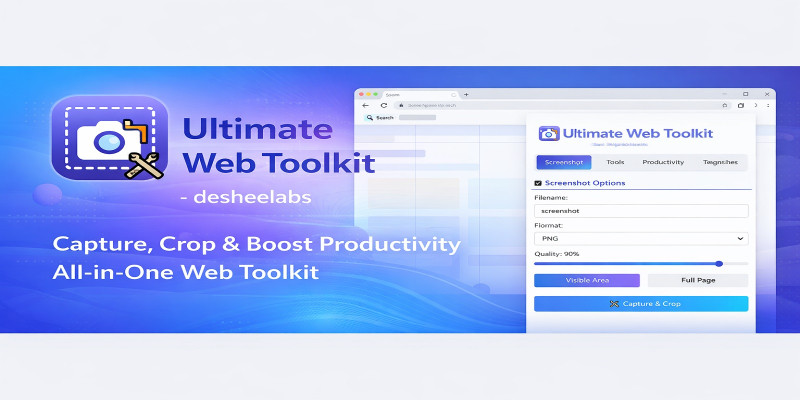
Screenshots


Overview
Ultimate Web Toolkit - Browser Extension (Chrome, Firefox, Edge)
Ultimate Web Toolkit is a modern all-in-one browser extension that helps you work faster on the web. It includes screenshot tools, page utilities (dark mode, highlighter, color picker), productivity tools (notes, bookmarks, QR), and page insights (word count, links, images) in a single clean popup UI.
Key Features
- Screenshot tools: capture visible area, full page capture, capture & crop, recent history
- Dark mode: toggle a dark/inverted view on the current page
- Text highlighter: highlight selected text on the current page
- Color picker: pick an element’s background color and copy it to clipboard
- Translate page: opens Google Translate for the current URL
- QR code generator: generate a QR code for the current page
- Quick notes: save page-specific notes locally
- Bookmarks: quickly save and manage bookmarks locally
- Page stats: word count, images count, links count
- Tab tools: list tabs, switch tabs, close other tabs (with confirmation)
Supported Browsers
- Chrome (Manifest V3)
- Firefox
- Microsoft Edge
Live Store Links
- Chrome Web Store: View listing
- Firefox Add-ons: View listing
- Microsoft Edge Add-ons: View listing
Permissions (Why needed)
- activeTab: runs page tools only when you click the extension action
- scripting: injects required page logic on demand
- tabs: tab utilities and screenshot workflows
- storage: stores notes, bookmarks, and screenshot history locally
Privacy
- No user accounts required.
- No personal data is sent to our servers.
- Notes, bookmarks, and history are stored locally in the browser.
- Translate feature opens translate.google.com in a new tab.
- QR generator loads a QR image from api.qrserver.com using the current page URL as data.
Included Files
- Extension source code
- Documentation (HTML/CSS/JS)
Keywords
browser extension, chrome extension, firefox addon, edge addon, screenshot extension, full page screenshot, dark mode, color picker, text highlighter, qr code generator, notes, bookmarks, productivity tools, tab manager, page stats
Features
Ultimate Web Toolkit is an all-in-one browser extension focused on productivity and web utilities. All features are available from a single popup interface and are user-triggered.
Screenshot Tools
- Capture visible area
- Full page screenshot capture
- Capture and crop before download
- Recent screenshot history
Web Tools
- Toggle dark mode on the current page
- Text highlighter for selected content
- Color picker (copies picked color to clipboard)
- Translate current page (opens Google Translate)
Productivity Tools
- Generate QR code for the current page
- Quick notes saved locally (page-specific)
- Bookmark the current page and manage saved bookmarks locally
Page Insights
- Word count
- Images count
- Links count
- Current tab title, URL, and domain display
Tab Manager
- List all tabs in the browser window
- Switch to a selected tab
- Close other tabs with confirmation
Technical Notes
- Manifest V3
- Minimal permissions and on-demand scripting (no automatic injection on every website)
- No user accounts; local storage for notes/bookmarks/history
Requirements
Requirements
- A modern web browser:
- Google Chrome / Chromium-based browsers (including Microsoft Edge)
- Mozilla Firefox
- For manual installation (developer mode):
- Chrome/Edge: Developer mode enabled and “Load unpacked” access
- Firefox: about:debugging (temporary add-on) or add-on installation method
- Internet connection is required only for:
- “Translate Page” (opens translate.google.com)
- “QR Code” (loads QR image from api.qrserver.com)
- No server or API key is required.
- No database is required.
Instructions
Installation (Chrome / Edge)
1. Download and unzip the package.
2. Open chrome://extensions (or edge://extensions).
3. Enable Developer mode.
4. Click “Load unpacked”.
5. Select the folder that contains manifest.json.
Installation (Firefox)
1. Download and unzip the package.
2. Open about:debugging#/runtime/this-firefox
3. Click “Load Temporary Add-on…”
4. Select the manifest file (or the extension entry file as required by Firefox).
How to use
1. Click the extension icon in the browser toolbar to open the popup.
2. Use Screenshot tools:
- Visible area capture
- Full page capture
- Capture and crop
3. Use Web Tools:
- Dark mode toggle
- Text highlighter
- Color picker (copies to clipboard)
- Translate page (opens Google Translate in a new tab)
4. Use Productivity tools:
- QR code for current page
- Quick notes (saved locally per page)
- Bookmarks (saved locally)
5. Use Page Info and Tab tools:
- View page stats (words/images/links)
- List all tabs, switch tabs, close other tabs
Notes
- Page tools run only when triggered from the popup (on-demand scripting).
- Some internal browser pages (chrome://, edge://, about:) do not allow script injection by design.
Other items by this author




| Category | Scripts & Code / JavaScript / Miscellaneous |
| First release | 29 January 2026 |
| Last update | 29 January 2026 |
| Files included | .css, .html, Javascript .js |
| Tags | browser extension chrome extension firefox addon edge addon productivity screenshot full page screenshot dark mode text highlighter |