WP Database Manager And Backup Pro PluginWP Database Manager And Backup Pro Plugin
Full database stats, one-click export, scheduled backups, optimize, repair, orphan detector & size history for WordPress. Recently Updated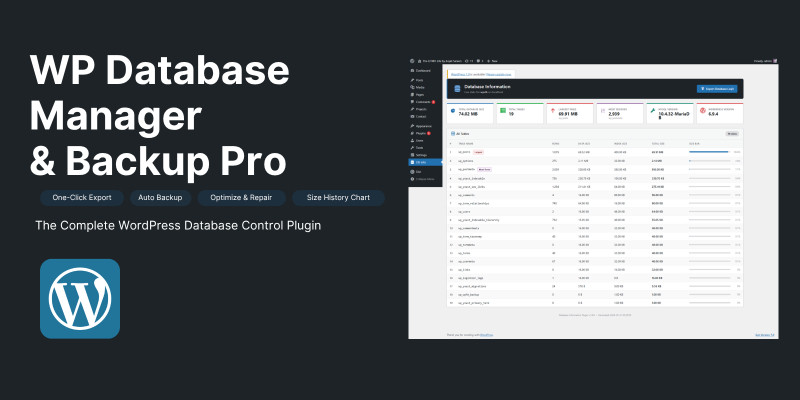
Screenshots


Overview
Take Complete Control of Your WordPress Database
Manage your database effortlessly without touching phpMyAdmin or writing a single SQL query. WP Database Manager & Backup Pro gives you a powerful, beautifully designed admin dashboard that displays everything about your database in real time — including table sizes, row counts, engine types, and database growth trends over time.
Whether you're a developer managing multiple client websites or a site owner looking for peace of mind, this plugin provides all the tools you need to monitor, clean, optimize, and back up your database with just one click — directly inside the familiar WordPress admin panel.
No coding required. No external services. No monthly fees. Simply install, activate, and take full control of your database instantly.
Features
Database Overview
- Live dashboard showing total database size, table count, largest table, most records, MySQL/MariaDB version, and WordPress version.
- Full table list with rows, data size, index size, total size, and a visual size bar showing each table's share of the total.
- Largest and Most Rows badges automatically highlight important tables.
- Engine type shown per table (InnoDB, MyISAM, etc.).
- Live table search instantly filters 100+ tables by name with a single keystroke.
Export & Backup
- One-click full database export as a
.sqlfile that downloads directly to your browser. - Export selected tables only and choose exactly which tables to include in the export.
- Scheduled automatic backups with daily or weekly backup options powered by WP-Cron.
- Backup files securely stored in
wp-content/uploads/dbi-backups/with.htaccessprotection. - Optional email delivery sends every backup as an attachment.
- Backup history includes file size, date, download, and delete options for every backup file.
- Automatically keeps the latest 10 backups while pruning older files to save disk space.
- Uses
mysqldumpwhen available (including XAMPP compatibility) and falls back to a pure PHP export method.
Optimize & Repair
- Optimize any single table with one click to reclaim wasted space after bulk deletes.
- Repair any single table to fix corrupted table issues after crashes.
- Bulk Optimize All and Repair All actions available for full-site maintenance.
- Success and error notices displayed after every action.
Orphaned Tables Detector
- Automatically detects database tables left behind by uninstalled plugins.
- Displays a dedicated list of orphaned tables with a safe drop option.
- Helps keep your database lean and reduces unnecessary storage usage.
Truncate / Drop Table
- Safely truncate any table to delete all rows while keeping the table structure intact.
- Permanently drop any table from the admin panel with a double-confirm safety prompt.
- Dropdown-based table selection helps prevent accidental actions.
Size History Chart
- Daily database size automatically logged using WP-Cron.
- Beautiful Chart.js line graph displays database growth over the last 30 days.
- Raw size history logs include date-by-date KB values.
- Helps identify sudden database growth spikes caused by runaway plugins or excessive logs.
WordPress Dashboard Widget
- Compact summary widget displayed directly on the main WordPress dashboard.
- Shows total database size, table count, largest table, most rows, MySQL version, and database name at a glance.
- Includes a direct link to the full DB Info panel for deeper management and monitoring.
Requirements
- - WordPress 5.0 or higher
- - PHP 7.4 or higher
- - MySQL 5.6+ or MariaDB 10.1+
- - Administrator access (`manage_options` capability)
- - WP-Cron enabled (required for scheduled backups and size history logging)
- - `shell_exec` enabled (optional — used for `mysqldump`; plugin falls back to PHP export if unavailable)
Instructions
Installation
- Download the plugin
.zipfile. - In your WordPress admin, go to Plugins → Add New → Upload Plugin.
- Upload the zip file and click Install Now.
- Click Activate Plugin.
- A new DB Info item will appear in your WordPress admin sidebar.
Viewing Database Stats
- Click DB Info in the sidebar.
- The Overview tab loads instantly with live database stats and the full table list.
- Use the search box to filter tables by name in real time.
- Click the optimize (blue) or repair (green) icon on any row to run maintenance on that table.
- Use Optimize All or Repair All buttons in the header to run bulk maintenance.
Exporting the Database
Full Export
Click the Export Full DB button in the header. Your browser will download a
.sql file named db-export-{dbname}-{date}.sql.
Partial Export (Selected Tables)
- Go to the Tools tab.
- Check the tables you want to export.
- Click Download Selected (.sql).
Re-importing a Backup
<code>mysql -u your_user -p your_database < db-export-yourdb-2026-05-21.sql
</code>
Or use phpMyAdmin → Import and select the .sql file.
Setting Up Scheduled Backups
- Go to the Backup tab.
- Toggle Enable Scheduled Backups on.
- Choose Daily or Weekly.
- Optionally enter an email address to receive each backup as an attachment.
- Click Save Settings.
- Click Run Backup Now to create your first backup immediately.
Backup files are listed below the settings form. Click the download icon to save a copy, or the trash icon to delete a backup file.
Checking for Orphaned Tables
- Go to the Tools tab.
- Scroll to the Orphaned Tables section.
- Any tables not belonging to active WordPress core features or active plugins are listed.
- Click the trash icon to drop an orphaned table and confirm the prompt.
Truncating or Dropping a Table
- Go to the Tools tab.
- Scroll to Truncate / Drop Table.
- Select a table from the dropdown.
- Choose Truncate (removes rows, keeps structure) or Drop (permanently deletes the table).
- Click Execute Action and confirm the double-prompt.
⚠️ Warning: Truncate and Drop actions are irreversible. Always take a backup first.
Viewing Size History
- Go to the Size History tab.
- A line chart shows your database size over the last 30 days.
- The chart populates daily — after the first 24 hours you will see your first data point.
- The raw log table below the chart shows the exact KB value for each recorded day.
Other items by this author











| Category | Plugins / WordPress / Backup |
| First release | 24 May 2026 |
| Last update | 24 May 2026 |
| Supported CMS | WordPress 4.9, WordPress 5.8, WordPress 5.9, WordPress 6.0, WordPress 6.1, WordPress 6.2, WordPress 6.3, WordPress 6.4, WordPress 6.5, WordPress 6.6, WordPress 6.7 |
| Files included | .php, .css, .html, .less, .sql, Javascript .js |
| Tags | wordpress, wordpress plugin, wordpress backup plugin, wordpress database |