WP Turbo OptimizerWP Turbo Optimizer
All-in-one WordPress performance plugin: lazy load images, minify HTML/CSS/JS output, enable browser caching via .htaccess, and au Recently Updated
WP Turbo Optimizer
All-in-one WordPress performance plugin: lazy load images, minify HTML/CSS/JS output, enable brow...
Screenshots


Overview
WP Turbo Optimizer is an all-in-one WordPress performance plugin designed to improve page speed, reduce resource usage, and keep your database clean. It combines image and iframe lazy loading, HTML/CSS/JavaScript minification, browser caching, and automated database optimization into a single lightweight dashboard. With simple controls and sensible defaults, WP Turbo Optimizer helps websites load faster while reducing maintenance overhead.
Features
Lazy load images and iframes to reduce initial page load timeHTML output minification for smaller page sizesInline CSS minification to reduce unnecessary whitespace and commentsInline JavaScript minification for optimized frontend deliveryBrowser caching support through automatic .htaccess configurationManual database cleanup with one-click optimizationAutomatic weekly database cleanup using WordPress CronDatabase size monitoring directly from the dashboardAJAX-powered cleanup actions without page reloadsLightweight architecture with modular feature managementCompatible with most caching, optimization, and WooCommerce environments
Requirements
WordPress 5.8 or laterPHP 7.4 or laterApache web server for automatic browser caching configurationWrite access to the WordPress root .htaccess fileWordPress Cron enabled for scheduled cleanup tasksAdministrator access to manage optimization settings
Instructions
Installation
- Upload and install the plugin through Plugins → Add New → Upload Plugin, or upload the plugin folder manually to
/wp-content/plugins/. - Activate the plugin from the WordPress Plugins screen.
- Navigate to Turbo Optimizer in the WordPress admin menu.
Configuration
- Enable or disable the optimization features you want to use.
- Save your settings using the built-in WordPress Settings API.
- Clear any page cache or CDN cache after making changes to ensure optimizations take effect.
Performance Optimization
- Enable Lazy Load to defer loading of off-screen images and iframes.
- Enable HTML Minification to reduce page size.
- Optionally enable Inline CSS and Inline JavaScript Minification after testing theme and plugin compatibility.
- Enable Browser Caching to improve repeat visitor performance.
Database Maintenance
- Open the Turbo Optimizer dashboard.
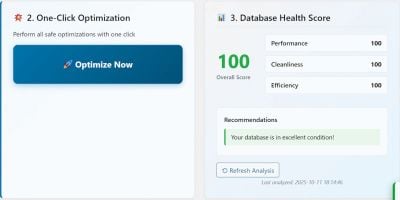
- Click Clean Now to remove revisions, auto-drafts, spam comments, expired transients, orphaned metadata, and other unnecessary database entries.
- Enable Automatic Weekly Cleanup to keep your database optimized without manual intervention.
Best Practices
- Test your website after enabling CSS or JavaScript minification.
- Back up your database before running large cleanup operations.
- Purge any caching plugins after changing optimization settings.
- Avoid enabling duplicate optimization features from multiple plugins at the same time.