Clean Duplicate Database - World PluginClean Duplicate Database - World Plugin
Professional database cleanup plugin for WordPress and WooCommerce, designed to identify duplicates, invalid references and redund Recently Updated
Clean Duplicate Database - World Plugin
Professional database cleanup plugin for WordPress and WooCommerce, designed to identify duplicat...
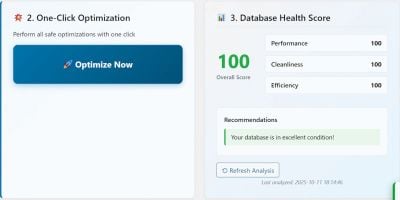
Screenshots


Overview
Clean Duplicate Database is designed for administrators and e-commerce managers who need to keep catalogs and databases clean, stable and efficient after repeated imports, synchronizations and maintenance cycles. The plugin helps inspect and clean duplicate products, inconsistent references and leftover data that may affect search quality, filters, navigation and performance. It is particularly useful for catalog-heavy WooCommerce stores and maintenance-oriented WordPress environments.
Features
- Database analysis for duplicate and inconsistent data
- Useful after catalog imports and synchronization operations
- Helps improve database order, catalog quality and operational stability
- Designed for large WooCommerce catalogs and maintenance workflows
- Structured cleanup process with administrative control
- Suitable for routine optimization and technical maintenance
- Works with WordPress and WooCommerce environments
Requirements
Software Requirements
- WordPress 6.0 or later
- PHP 7.4 or later
- MySQL 5.7+ or MariaDB 10.3+
- Write access to the wp-content directory
- Modern web browser for the administration area
- WooCommerce is recommended, especially for product and catalog cleanup tasks.
Recommended Hardware
- 2 CPU cores minimum, 4+ recommended for heavy workloads
- 2 GB RAM minimum, 4 GB+ recommended for large stores or large datasets
- SSD storage recommended for better read/write performance
- Stable internet connection for update, sync or cloud-related workflows when applicable
Instructions
Installation Instructions
1. Download the included full free plugin ZIP: world-plugin-clean-duplicate-database.zip
2. Log in to your WordPress administration panel.
3. Go to Plugins > Add New > Upload Plugin.
4. Upload the ZIP file and click Install Now.
5. Activate the plugin.
6. Open the plugin menu in the WordPress admin area.
7. Review the main settings and configure the plugin according to your project needs.
8. If WooCommerce-specific workflows are required, make sure WooCommerce is installed and activated.
Other items by this author


| Category | Plugins / WordPress / Performance |
| First release | 23 June 2026 |
| Last update | 23 June 2026 |